Best of the
Best
Editors' picks and our top buying guides













Best of the
Best
Editors' picks and our top buying guides
Latest

Best Internet Providers in Roswell, Georgia
9 minutes ago
Keep Your Home Safe With This Schlage Encode Smart Lock Bundle, Now 80% Off
42 minutes ago
Apple May Give FineWoven Accessories 1 More Season
00:43 • 43 minutes ago
Best USB-C Monitor Deals: Save a Pretty Penny on Top Brands, Like LG, Asus and More
48 minutes ago
NBA Playoffs 2024: How to Watch Tonight's Games, Schedule, Matchups, TV Times
48 minutes ago
US vs. TikTok: What Happens Next
02:14 • 58 minutes ago
Best VPN for Amazon Fire TV Stick in 2024
1 hour ago
7 Best Space Heaters to Warm Your Home in 2024
1 hour ago
Best Office Chairs of 2024
1 hour ago
Best Waterproof Camera for 2024
1 hour ago
Electric-Vehicle Maker Polestar Is Making a Smartphone as a Companion to Its Cars
2 hours ago
5 Best Tea Clubs and Subscriptions for 2024, Tested and Reviewed
2 hours ago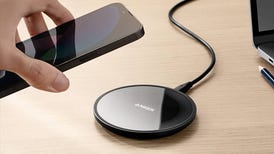
Best Wireless Charger for 2024
2 hours ago
The Best Bags for Your Summer Travels
2 hours ago
iOS 17.5 Beta 3: Your iPhone Could Get These New Features Soon
2 hours agoMore to Explore
Reviews, advice and more from CNET's experts.





Get the best price on everything CNET Shopping helps you get the best prices on your favorite products. Get promo codes and discounts with a single click.
Add to Chrome - it's free!
Our Expertise
Expertise Lindsey Turrentine is executive vice president for content and audience. She has helped shape digital media since digital media was born.
0357911176
02468104
024681024
Featured in
Tech

















Upgrade your inbox
Get CNET Insider
From talking fridges to iPhones, our experts are here to help make the world a little less complicated.
Featured in
Money










Crossing the Broadband Divide
Millions of Americans lack access to high-speed internet. Here's how to fix that.







Featured in
Energy and Utilities












Deep Dives
Immerse yourself in our in-depth stories.



Get the best price on everything CNET Shopping helps you get the best prices on your favorite products. Get promo codes and discounts with a single click.
Add to Chrome - it's free!
Featured in
Internet










Sleep Through the Night
Get the best sleep of your life with our expert tips.







Get the best price on everything CNET Shopping helps you get the best prices on your favorite products. Get promo codes and discounts with a single click.
Add to Chrome - it's free!
Tech Tips
Get the most out of your phone with this expert advice.






Get the best price on everything CNET Shopping helps you get the best prices on your favorite products. Get promo codes and discounts with a single click.
Add to Chrome - it's free!

Featured in
Home










Living Off Grid
CNET's Eric Mack has lived off the grid for over three years. Here's what he learned.





