Best of the
Best
Editors' picks and our top buying guides













Best of the
Best
Editors' picks and our top buying guides
Latest

This Bank Became the First to Fail in the US This Year. Here's What Borrowers Need to Know
37 minutes ago
Waking Up Tired? Try This Natural Sleep Supplement
45 minutes ago
Best Solar Panel Installation Companies in North Carolina
46 minutes ago
Stop Crushing Aluminum and Other Ways You're Recycling Metal Cans Wrong
1 hour ago
Calling All Hot Sleepers and Hot Flashers: This Wearable May Be Worth a Try
2 hours ago
Best Headphones for 2024
2 hours ago
Best Teeth Whitening Kits in 2024
2 hours ago
Best Bluetooth Speaker for 2024
2 hours ago
Spotify Quietly Starts Charging Non-Premium Listeners for Lyrics
2 hours ago
NBA Playoffs 2024: How to Watch Bucks vs. Pacers, Knicks vs. 76ers Tonight
2 hours ago
Best Horror Movies on Max: 9 Films to Watch Right Now
2 hours ago
Best Deals on Earbuds and Headphones: Save on Anker, Beats, Bose and More
3 hours ago
Best Streaming Services of 2024
3 hours ago
Best Noise-Canceling Earbuds for 2024
4 hours ago
Expect Higher Interest Rates Through the End of 2024. Fed Blames 'Lack of Progress' on Inflation
4 hours agoMore to Explore
Reviews, advice and more from CNET's experts.





Get the best price on everything CNET Shopping helps you get the best prices on your favorite products. Get promo codes and discounts with a single click.
Add to Chrome - it's free!
Our Expertise
Expertise Lindsey Turrentine is executive vice president for content and audience. She has helped shape digital media since digital media was born.
0357911176
02468104
024681025
Tech


















Upgrade your inbox
Get CNET Insider
From talking fridges to iPhones, our experts are here to help make the world a little less complicated.
Money











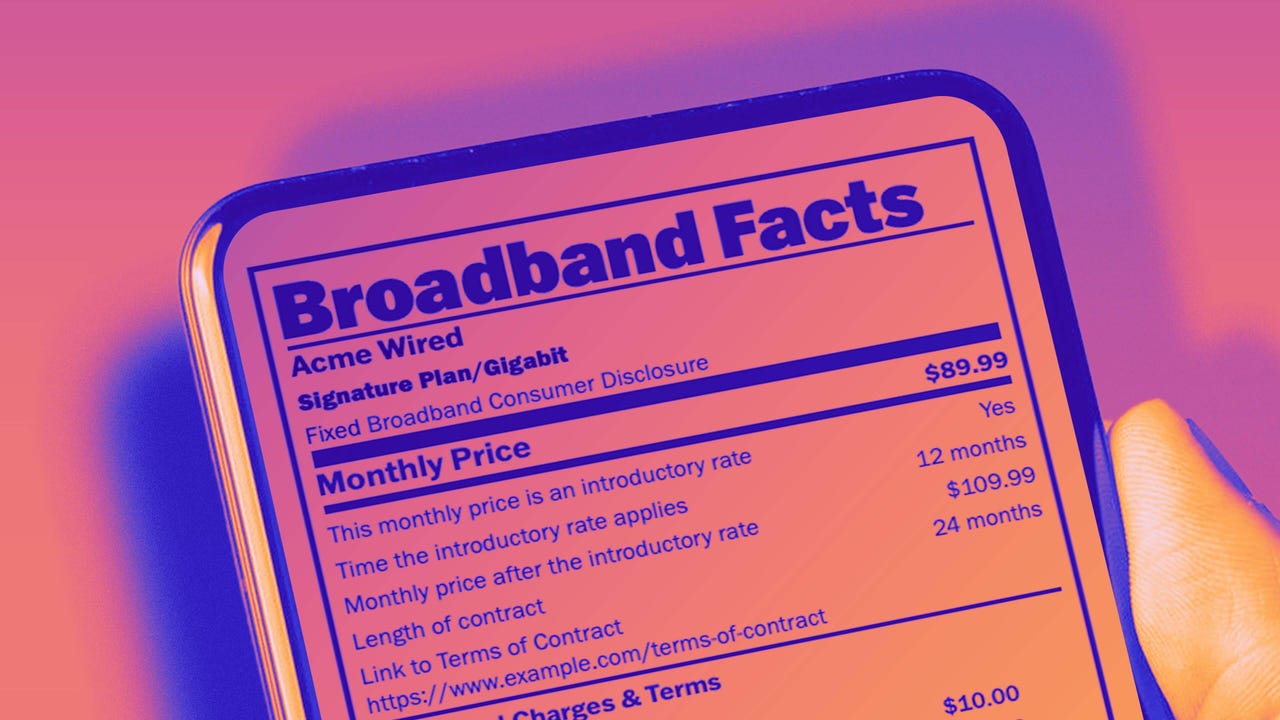
Crossing the Broadband Divide
Millions of Americans lack access to high-speed internet. Here's how to fix that.







Energy and Utilities
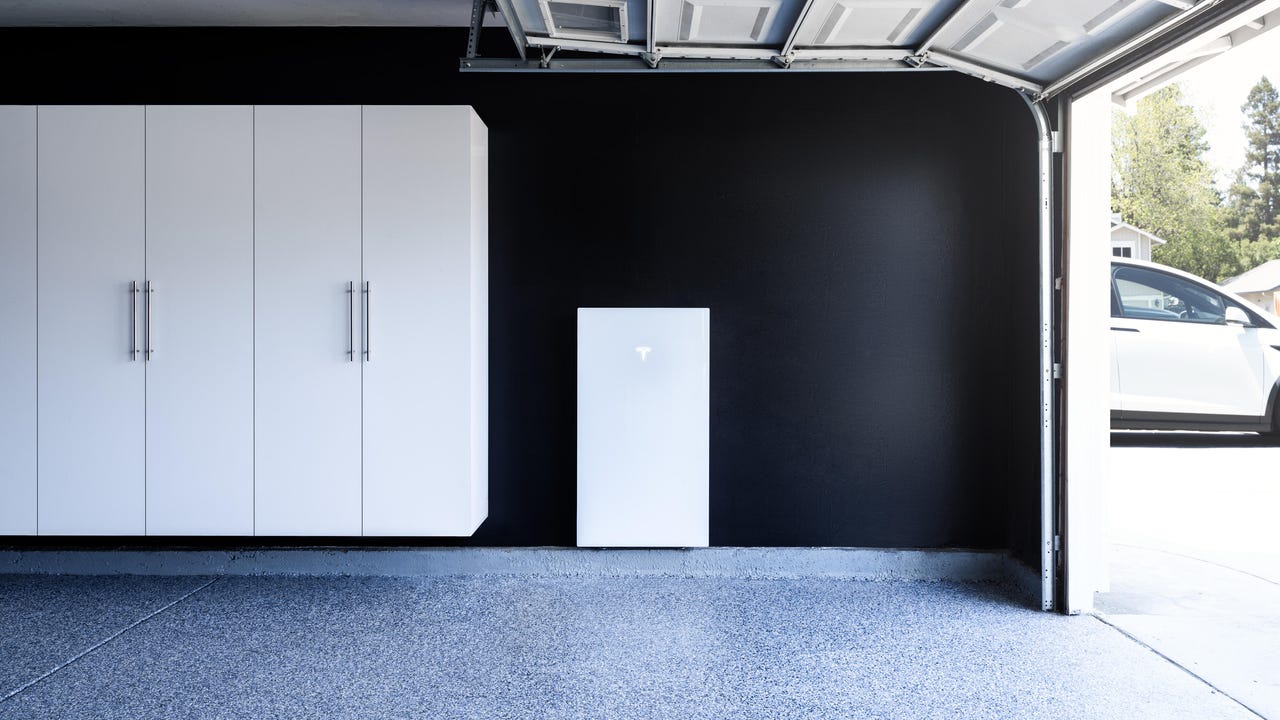













Deep Dives
Immerse yourself in our in-depth stories.



Get the best price on everything CNET Shopping helps you get the best prices on your favorite products. Get promo codes and discounts with a single click.
Add to Chrome - it's free!
Internet










Sleep Through the Night
Get the best sleep of your life with our expert tips.







Get the best price on everything CNET Shopping helps you get the best prices on your favorite products. Get promo codes and discounts with a single click.
Add to Chrome - it's free!
Tech Tips
Get the most out of your phone with this expert advice.






Get the best price on everything CNET Shopping helps you get the best prices on your favorite products. Get promo codes and discounts with a single click.
Add to Chrome - it's free!

Home










Living Off Grid
CNET's Eric Mack has lived off the grid for over three years. Here's what he learned.





