Best of the
Best
Editors' picks and our top buying guides










Best of the
Best
Editors' picks and our top buying guides
Latest

Best Printer Deals: Big Savings on Top Printers From Canon, Epson and More
3 minutes ago
Best LastPass Alternative in 2024
6 minutes agoBest Outdoor Games for 2024
18 minutes ago
Best AirPods Deals: Apple's Earbuds and Headphones Are Up to $70 Off
1 hour ago
Best iPhone 15 and iPhone 15 Pro Cases for 2024
1 hour ago
Best Generator Deals: Save Up to $650 on Top Brands Grecell, PowerSmart and More
1 hour ago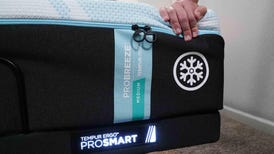
Tempur-Pedic Pro Breeze Review 2024: Classic Memory Feel That Will Keep You Cool
2 hours ago
Best Gel Mattress for 2024
2 hours ago
Best Pillow for Neck Pain in 2024
2 hours ago
Earth Day Deals 2024: Save Some Green on Eco-Friendly Tech and Home Products
2 hours ago
What is the Fediverse?
01:15 • 2 hours ago
Score Up to $300 Off an M3 MacBook Pro
2 hours ago
Get Loud With Up to $250 Off Your Next Portable Speaker Purchase
3 hours ago
Best Places to Buy Replacement Prescription Lenses Online in 2024
3 hours ago
MobileX Uses AI for Personalized Cellphone Plans, from $4.08 Per Month
Paid Content
More to Explore
Reviews, advice and more from CNET's experts.






Get the best price on everything CNET Shopping helps you get the best prices on your favorite products. Get promo codes and discounts with a single click.
Add to Chrome - it's free!
Our Expertise
Expertise Lindsey Turrentine is executive vice president for content and audience. She has helped shape digital media since digital media was born.
0357911176
02468104
024681024
Featured in
Tech

















Upgrade your inbox
Get CNET Insider
From talking fridges to iPhones, our experts are here to help make the world a little less complicated.
Featured in
Money










Crossing the Broadband Divide
Millions of Americans lack access to high-speed internet. Here's how to fix that.







Featured in
Energy and Utilities












Deep Dives
Immerse yourself in our in-depth stories.



Get the best price on everything CNET Shopping helps you get the best prices on your favorite products. Get promo codes and discounts with a single click.
Add to Chrome - it's free!
Featured in
Internet










Sleep Through the Night
Get the best sleep of your life with our expert tips.







Get the best price on everything CNET Shopping helps you get the best prices on your favorite products. Get promo codes and discounts with a single click.
Add to Chrome - it's free!
Tech Tips
Get the most out of your phone with this expert advice.






Get the best price on everything CNET Shopping helps you get the best prices on your favorite products. Get promo codes and discounts with a single click.
Add to Chrome - it's free!

Featured in
Home










Living Off Grid
CNET's Eric Mack has lived off the grid for over three years. Here's what he learned.





